
Skip to content
  • 630-935-7696
  • +372 669 2265
  • info@easystoneshop.com
  • Home
  • Features
    • Countertop Estimator
    • Job Scheduling
    • Smart Label
  • Pricing
  • Team
  • Blog
  • Tutorials
  • Contact
  • Login
  • Home
  • Features
    • Countertop Estimator
    • Job Scheduling
    • Smart Label
  • Pricing
  • Team
  • Blog
  • Tutorials
  • Contact
  • Login

© 2026

My Company

  • Employees
    • How to Add Candidate
    • How To Add Employees
    • How to Set an Employee as Discharged
    • How to Attach CV or Other Files to Candidate
    • How to Record Discharged Reason
    • Set Working Hours for Employee
    • Assign Multiple Employess to Activity
    • How to Add Candidate Contact Information
    • How to Evaluate a Candidate
    • Set a Birthday for Employee
    • Define an Employee Position
    • How to Add a Note for a Candidate
    • Define Skills of Employee
    • Set Employee Contact Information
    • How to Attach PIN-code to Employee
    • How to Define Overtime Rate for Employee
  • My Company Setup
    • How to Set My Company Profile
    • How to Define Tax Rate for My Company
    • How to Define Margins for My Company
  1. Home
  2. Docs
  3. My Company
  4. Employees
  5. How to Define Overtime Rate for Employee

How to Define Overtime Rate for Employee

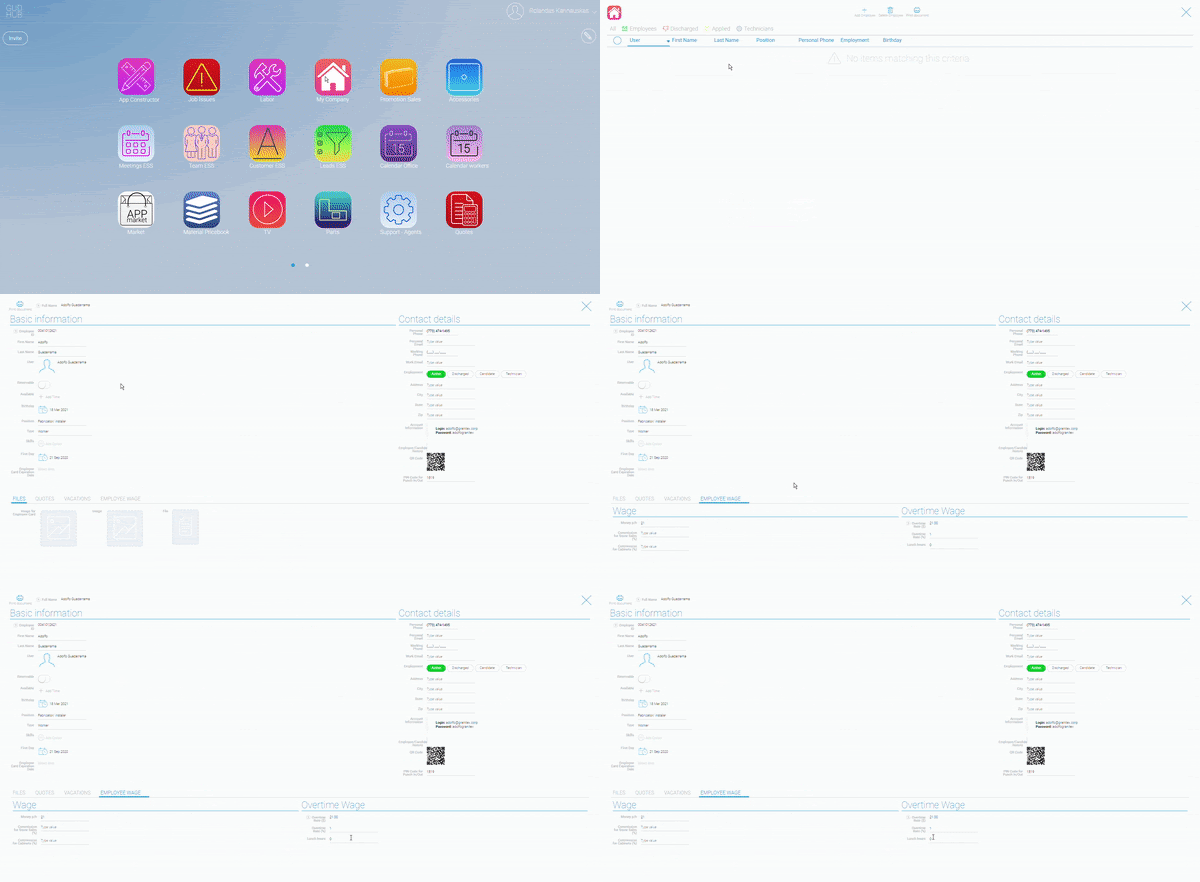
To define an overtime rate for your employee follow these steps.

Step 1: Open the “my company” application.

Step 2: Open employees.

Step 3: Select the employee you want to work with.

Step 4: Select the tab employee wage.

Step 5: Edit overtime rate%
Still stuck? How can we help?
Updated on 25.03.2021

Doc navigation

← How to Attach PIN-code to Employee

How can we help?

107 Brook Ct, Bolingbrook, IL, 60440 Laisves al. 82 , Kaunas, 44250 Lithuania
(630) 935-7696 +372 669 2265
info@easystoneshop.com
© Copyright
Privacy Policy